devops , dynamics-crm , Javascript , tips , typescript
Model-Driven-Apps: setup deployment Angular files to Dev using spkl

Last week, we already learn how to build Angular WebResources to be shown in the side pane. In that blog post, I deploy all the files manually which of course took time to do. Today, we will learn how to optimize it in order to boost productivity. We will learn how to use spkland set the Angular setting to fit our scenario.
Angular Build Hashing File
By default, when we run the command "ng build", the system will automatically generate the file with hashing naming in it:
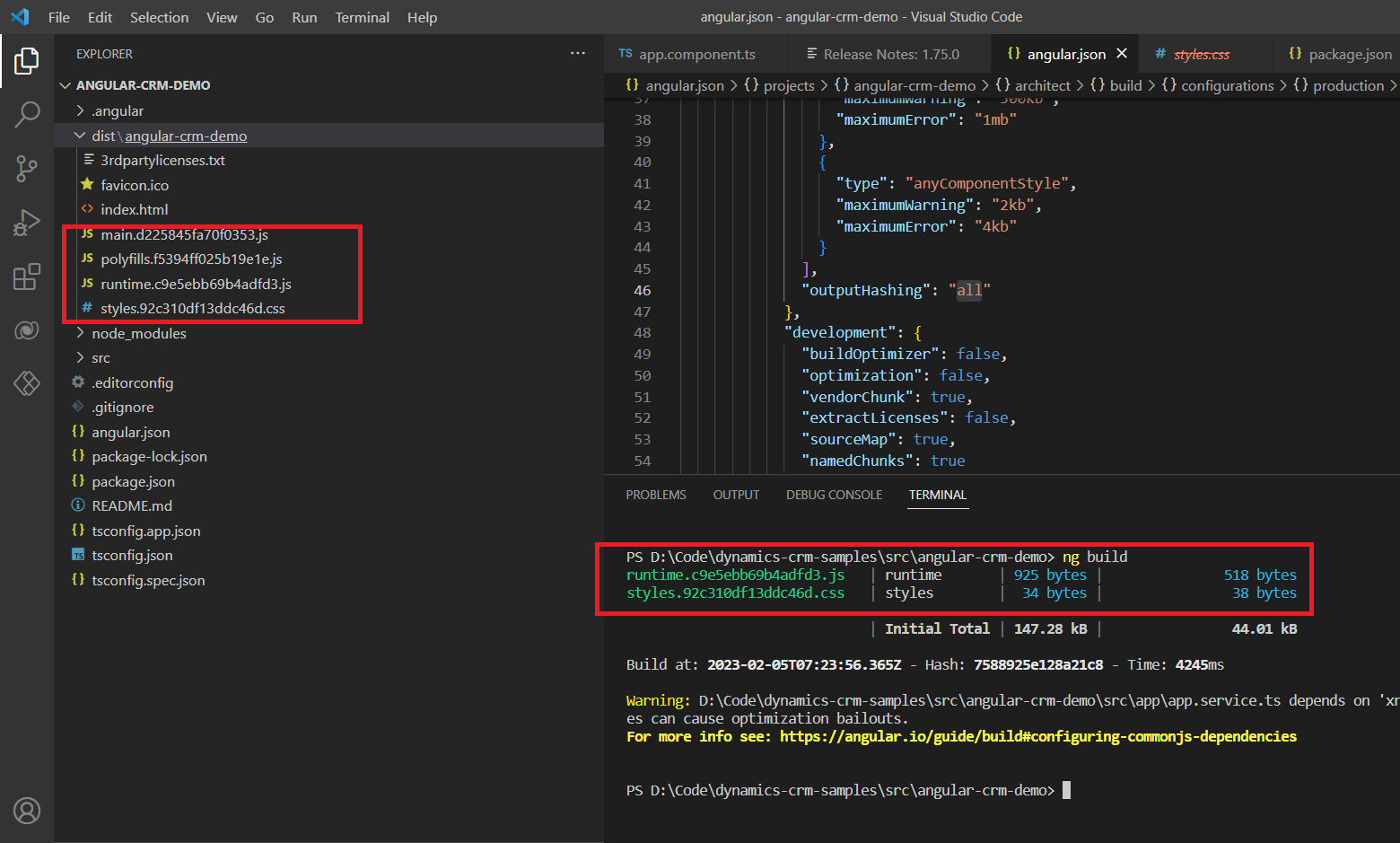
To make the naming correct, we need to go to the angular.json file, and set the outputHasing from "all" to "none":
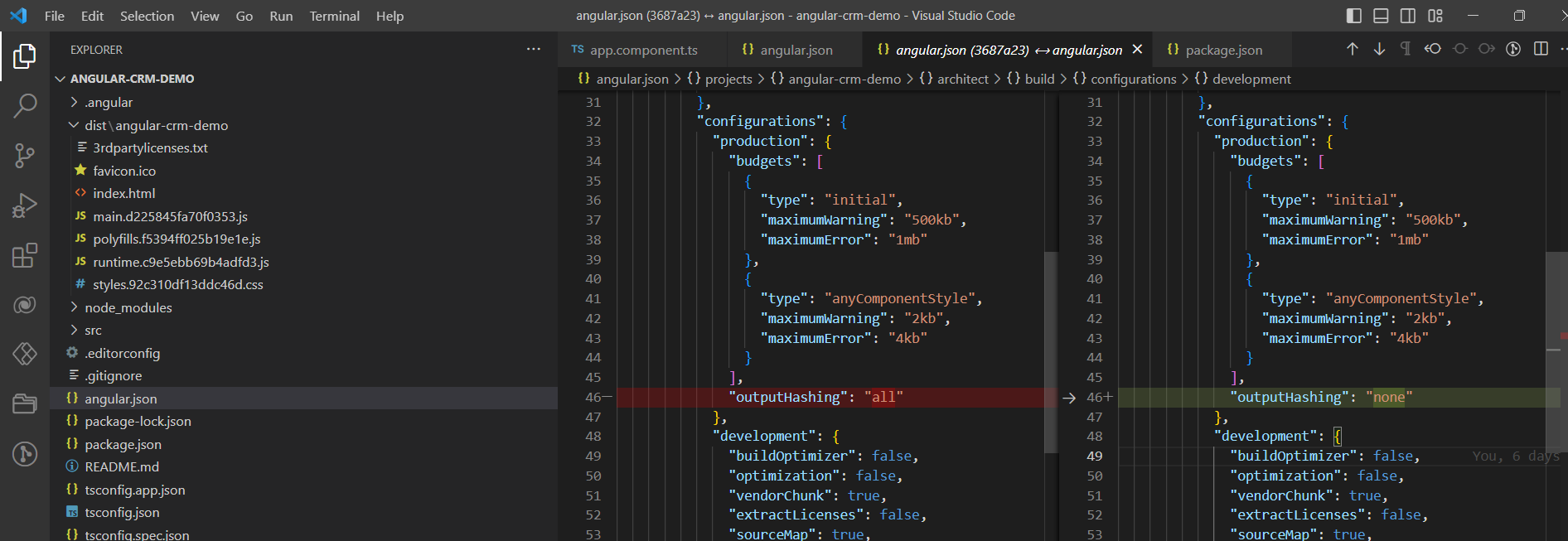
Once we set this, we can try to run the "ng build" command again, and here is the result:
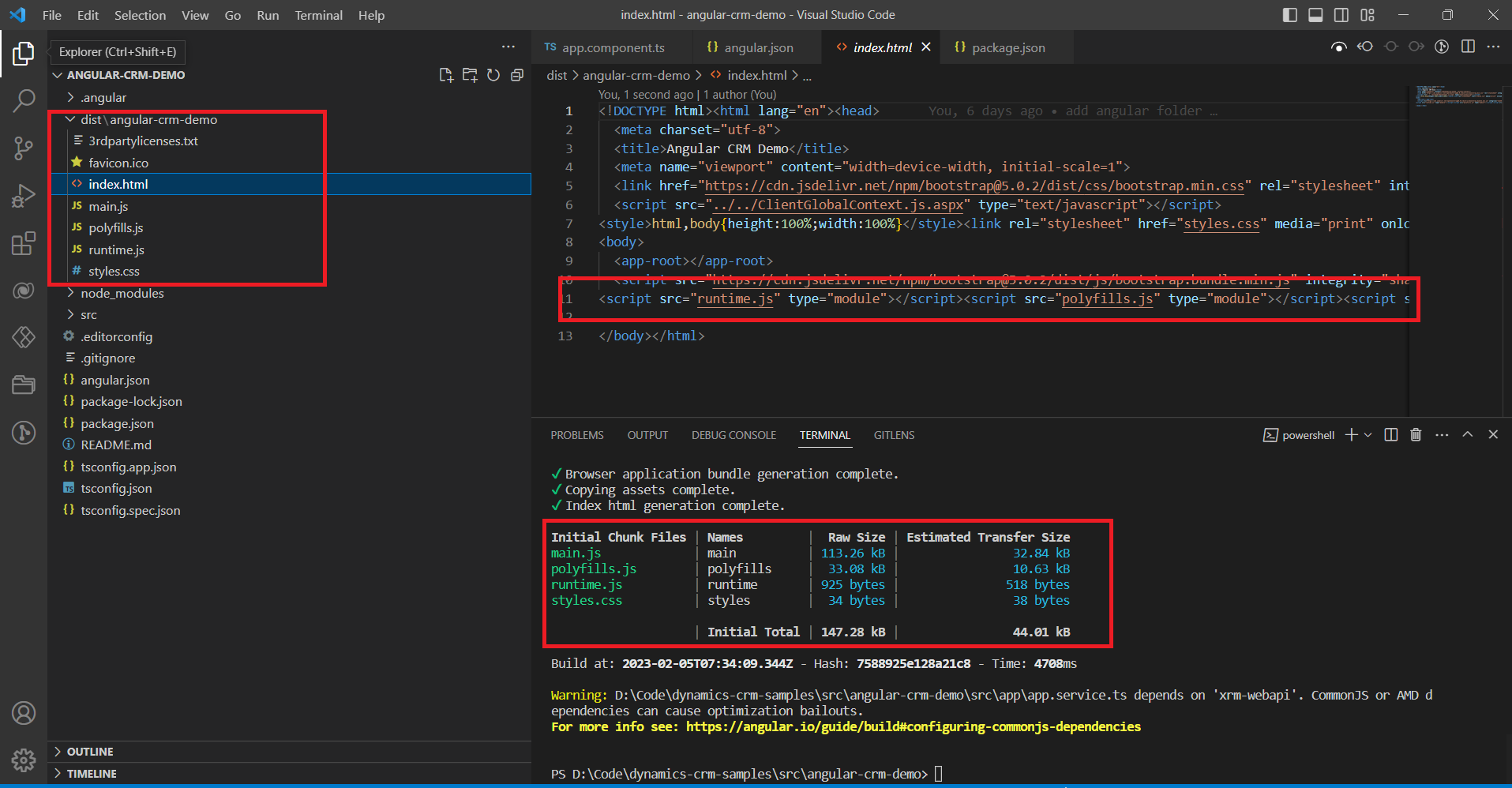
As you can see, now all the files are generated correctly. The index.html file also references the correct file without hashing.
Set Sparkle Project
Next, we need to make automation to deploy from local to Dev automatically. In order to do that, we can use spkl by the great Scott Durrow. As you know, Sparkle must be installed using NuGet. So we can create the .NET Library project (you can set the .NET Framework to 4.6.2) > and then install spkl Nuget package (install using this command dotnet add package spkl --version 1.0.640).
Once all is done, I add all the files in the dist folder to the project:
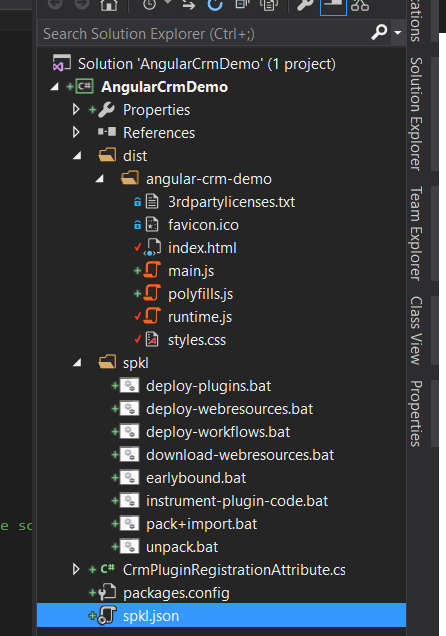
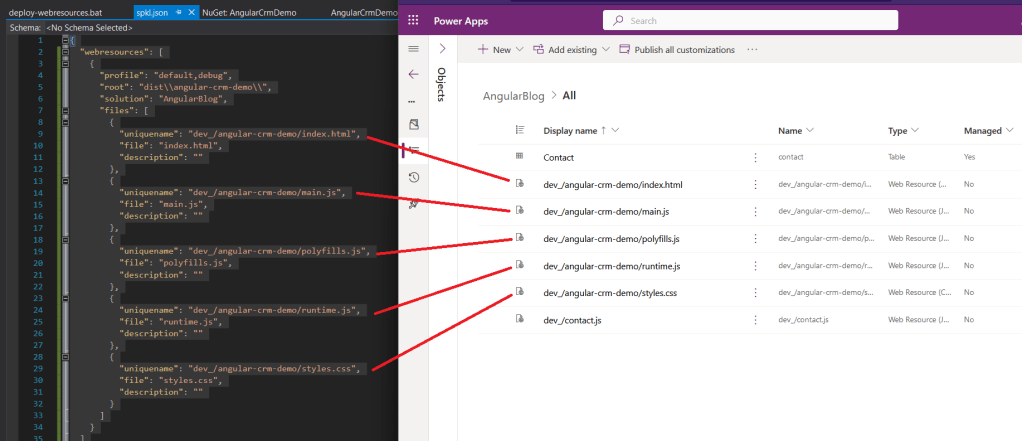
Next, we can open the spkl.json and change to the below content:
{
  "webresources": [
    {
      "profile": "default,debug",
      "root": "dist\\angular-crm-demo\\",
      "solution": "AngularBlog",
      "files": [
        {
          "uniquename": "dev_/angular-crm-demo/index.html",
          "file": "index.html",
          "description": ""
        },
        {
          "uniquename": "dev_/angular-crm-demo/main.js",
          "file": "main.js",
          "description": ""
        },
        {
          "uniquename": "dev_/angular-crm-demo/polyfills.js",
          "file": "polyfills.js",
          "description": ""
        },
        {
          "uniquename": "dev_/angular-crm-demo/runtime.js",
          "file": "runtime.js",
          "description": ""
        },
        {
          "uniquename": "dev_/angular-crm-demo/styles.css",
          "file": "styles.css",
          "description": ""
        }
      ]
    }
  ]
}
If you wondering how can I get that information, you also need to check your file in Dataverse in the first place:
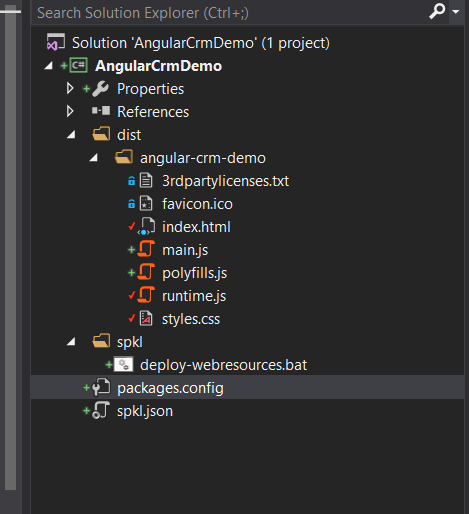
Because we only will use the spkl/deploy-webresources.bat. We can remove all the not needed parts. Here is the final result of the project:
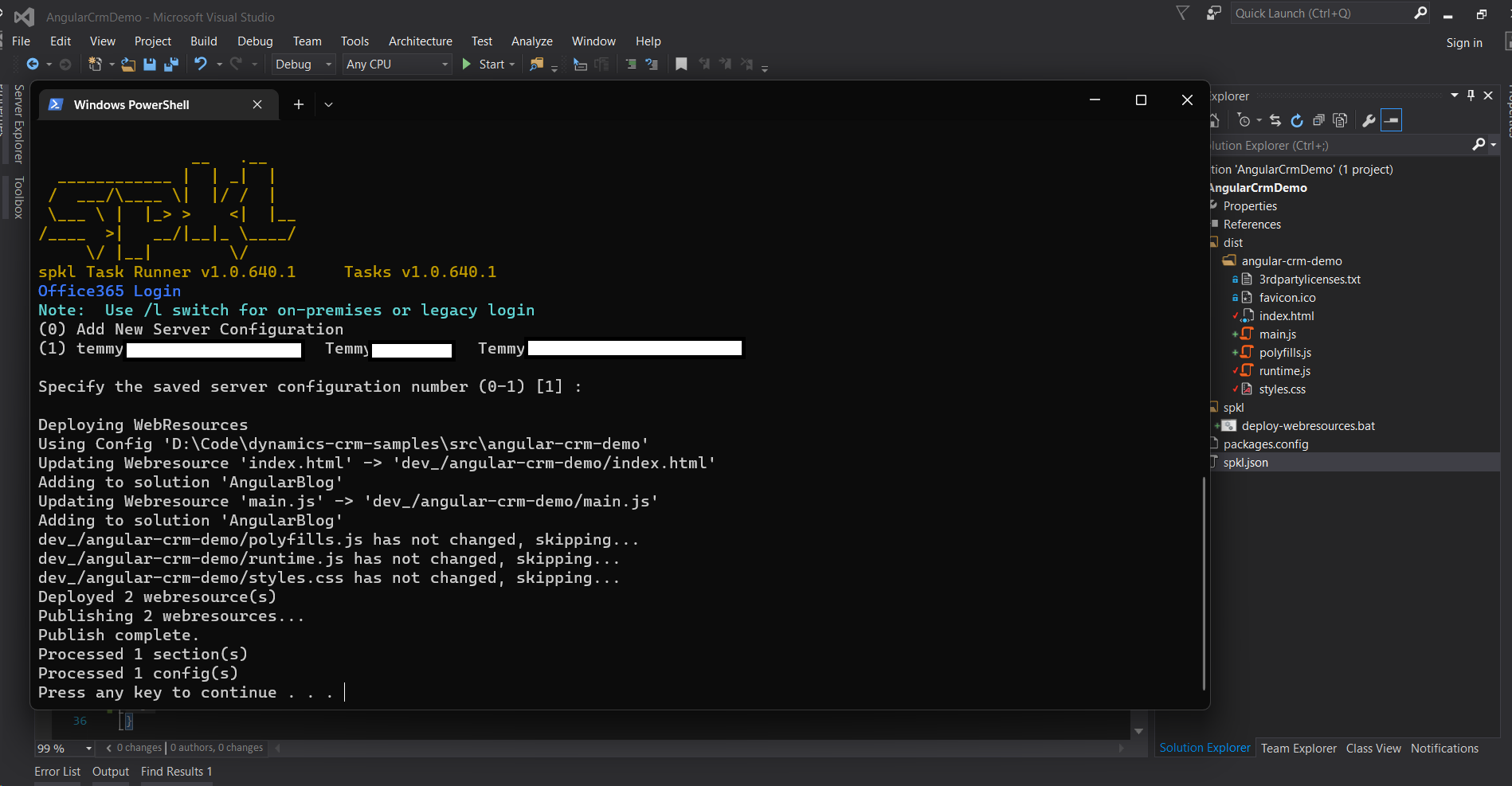
And with this done, to deploy the changes, we only need to double-click on deploy-webresources.bat (if you have not yet login, it will ask you to login / choose which environment you want to use):
Happy CRM-ing!
Leave a comment
Your comment is sent privately to the author and isn't published on the site.