ssis , tips , kingswaysoft , dynamics-crm , .NET
SSIS: 'The binary code for the script is not found' - what it actually means

You created an SSIS package. Maybe some of the flows need Script Components/Script Tasks. You add those, write the necessary C# code, and verify it on your local system. All good, and you're ready to push it to the SSIS server where you want to run it via SQL Agent (to test N-N). You deploy the project and run the package on the server. Suddenly, you encountered the "SSIS: 'The binary code for the script is not found..'" error. Why is there a discrepancy when running the package locally versus on the server? Today, we will learn what the root cause is and how to prevent such things from happening.
Background
The short answer, our local development machine configuration might be different from the server. For instance, my local development server tends to install all those .NET Framework, including the higher .NET language versions. And because we are developer that mostly comfortable with the latest version. For sure, we are not giving any consideration to code in a certain C# version. For example:
var isValid = currentRecords?.StartDate?.Value >= DateTime.Now;
As you can see in the above snippet, I'm using Nullable reference types that only exist in C# version 8. If the SSIS Server is still using an old version, it will reject that particular code. How does it reject that code? The secret of it is, actually, the SSIS .dtsx package that we're deploying was a .xml file. The code script that we are developing is maintained as a string value, which will be compiled and validated during the run. The compilation will be dependent on the server configuration, and this is the step that causes the 'The binary code for the script is not found..' error.
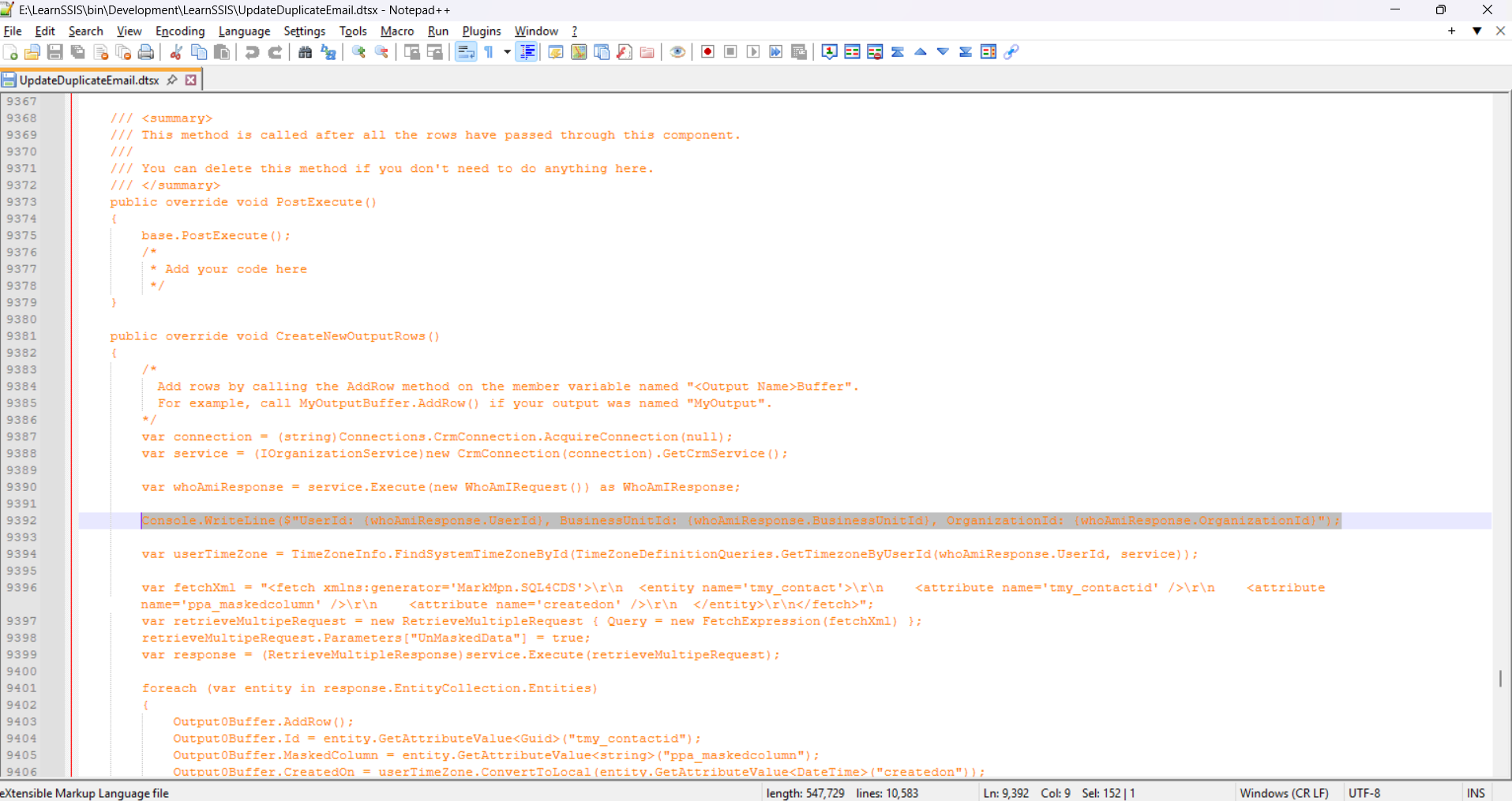 The C# code lives in XML format behind .dtsx
The two levers that actually matter
There are two most important settings that we must set in our SSIS project:
- TargetServerVersion. In the SSIS project properties → Configuration Properties → General, this tells the build which SSIS runtime you're producing for (SQL Server 2016 / 2017 / 2019 / 2022).
- Add LangVersion to every Script Component or Script Task → *.csproj to enforce developers to use a specific C# code version.
To add the LangVersion, open the Script Component or Script Task → click the Edit Script button:
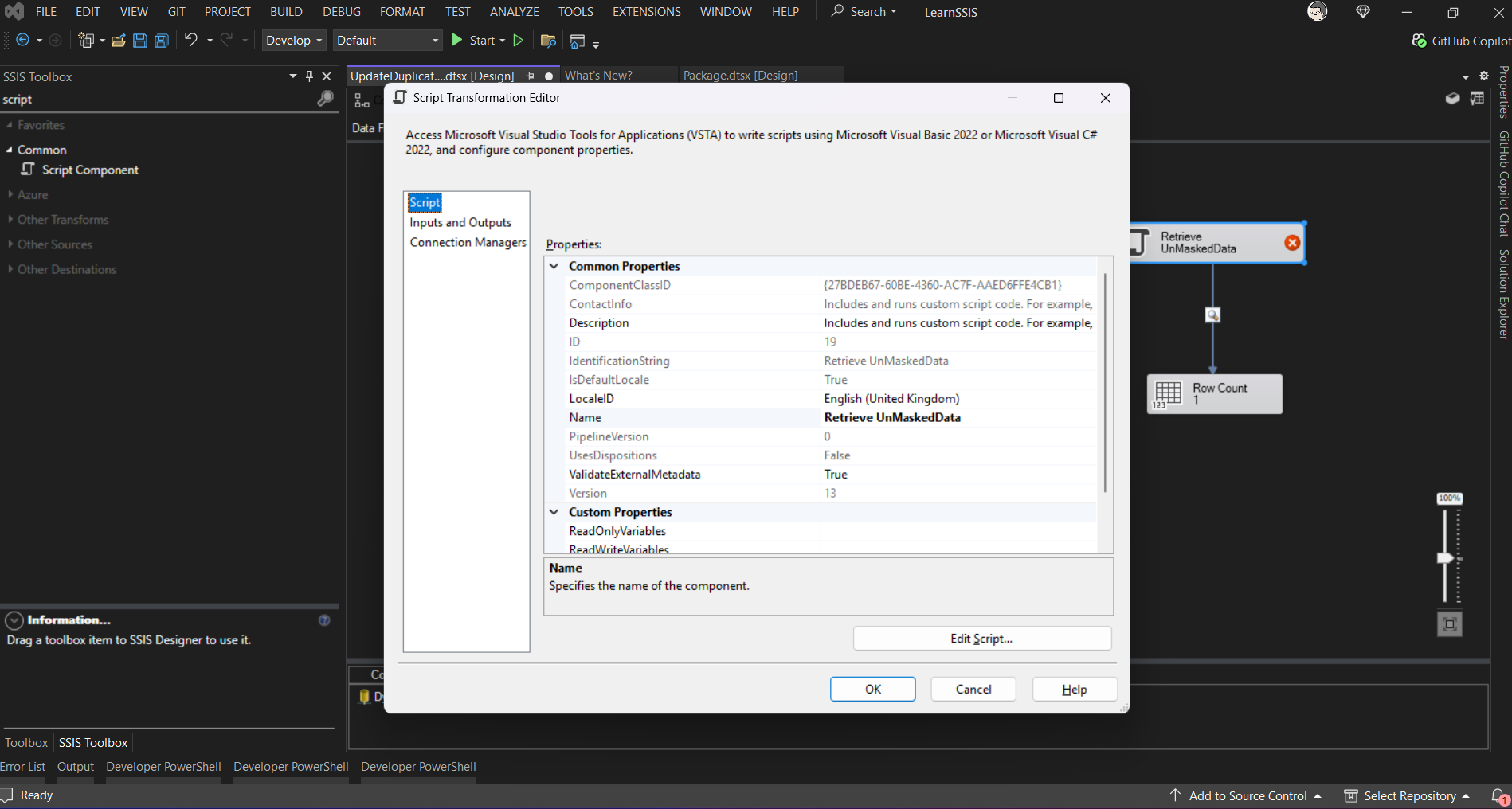 Edit Script..
It will open another Visual Studio to open the Script Component or Script Task .csproj. Next step, you need to open the .csproj file into other editor to add the LangVersion:
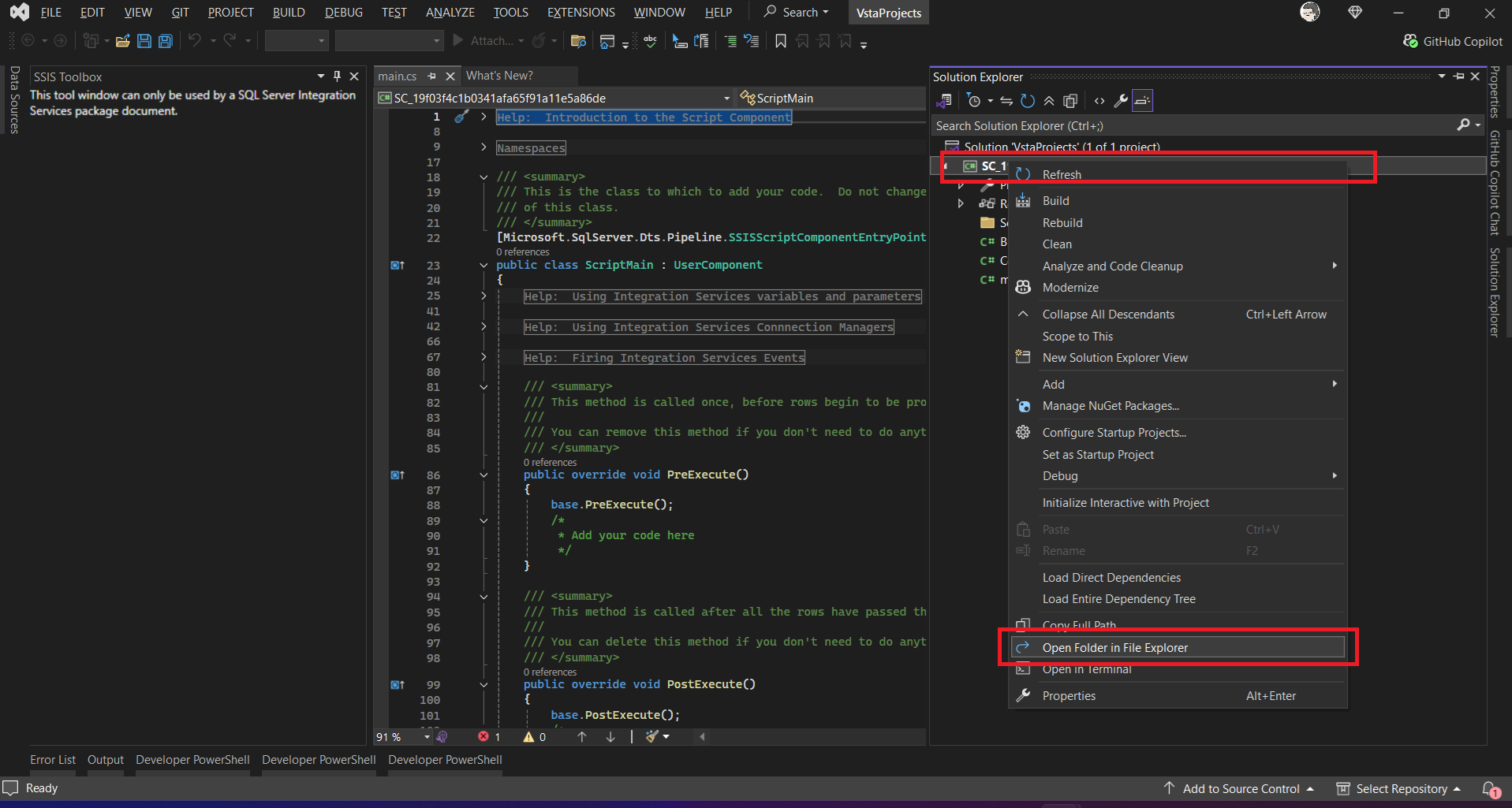 Open the .csproj
Once the File Explorer is opened, you may open the .csproj:
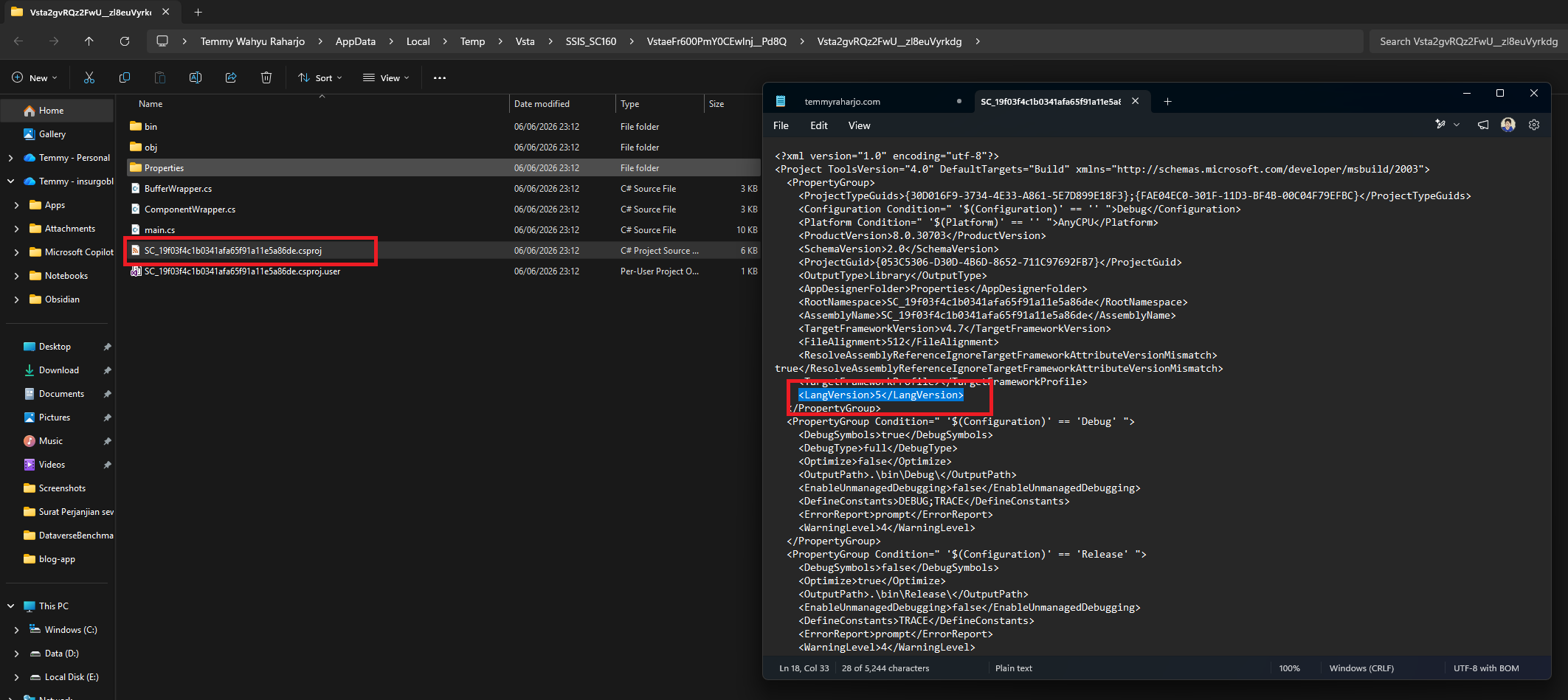 Add
Add LangVersion inside csproj
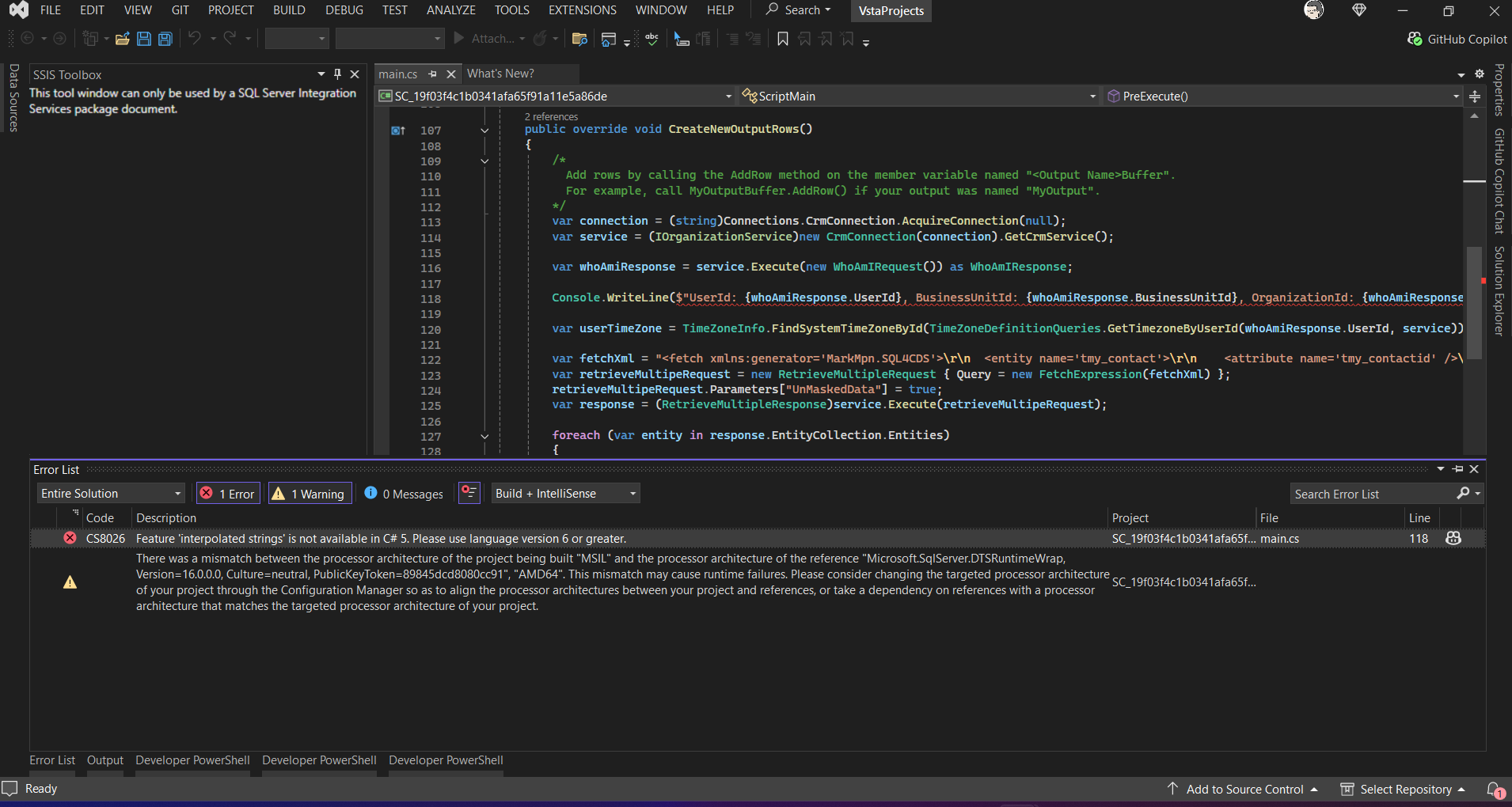
As you may see in the above screenshot, I added <LangVersion>5</LangVersion> inside between PropertyGroup. Once you click Save, Visual Studio will ask you to reload the project, and you may do so and test the changes. In the demo below, I'm adding the String Interpolation feature, which was rejected after we added the <LangVersion>5</LangVersion>:
 Demo
Demo
As you can see in the above screenshot, once we have added the LangVersion Visual Studio automatically rejects unsupported code during the build event.
Summary
- We added the
LangVersioninto the csproj to enforce developers to only use the supported C# version. - Unfortunately, we need to add this
LangVersionone by one inside all the Script Components/Tasks manually, and or very time we need to create a new Script Component/Task.
Leave a comment
Your comment is sent privately to the author and isn't published on the site.