Enable Navigation for Customer Insights - Journeys form

In Dynamics CRM products, I'm not sure why the Microsoft Product Team isn't enforcing the same UI languages across platforms. For example, in the Customer Insights - Journeys form, they decided to hide the Command and Navigation Bar. Because of this "initiative", it causes some headaches for the Client if they want to enable Auditingfor this table. Enabling Auditingis an OOB feature (and is a common requirement for some organizations to have), which we just need to configure the table or the attribute. But when they want to check the Audit Records, they can't see them because the Navigation Bar is hidden by default. Fear not! In this short blog post, I will share the way to fix it with minimal effort!
JavaScript Code
To understand how we will fix that issue, Dataverse has formContext.ui.headerSection.setTabNavigatorVisible(bool) function. By default, in the Customer Insights - Journeys form, the property of formContext.ui.headerSection.getTabNavigatorVisible() is set as "false". This causes the Navigation Bar to be invisible.
Hence, we only need simple JS code:
var Blog = Blog || {};
Blog.Utils = Blog.Utils || {};

(function () {
    this.setNavigatorVisibleToTrue = function (context) {
        var formContext = context.getFormContext();
        if (!formContext) return;
        var valid = formContext && formContext.ui && formContext.ui.headerSection && formContext.ui.headerSection.setTabNavigatorVisible;
        if (!valid) return;

        formContext.ui.headerSection.setTabNavigatorVisible(true);
    };
}).apply(Blog.Utils);
Next, we only need to register the above WebResource > load it into the form > and register the Blog.Utils.setNavigatorVisibleToTrue function in the onLoad event of the Customer Insights - Journeys form:
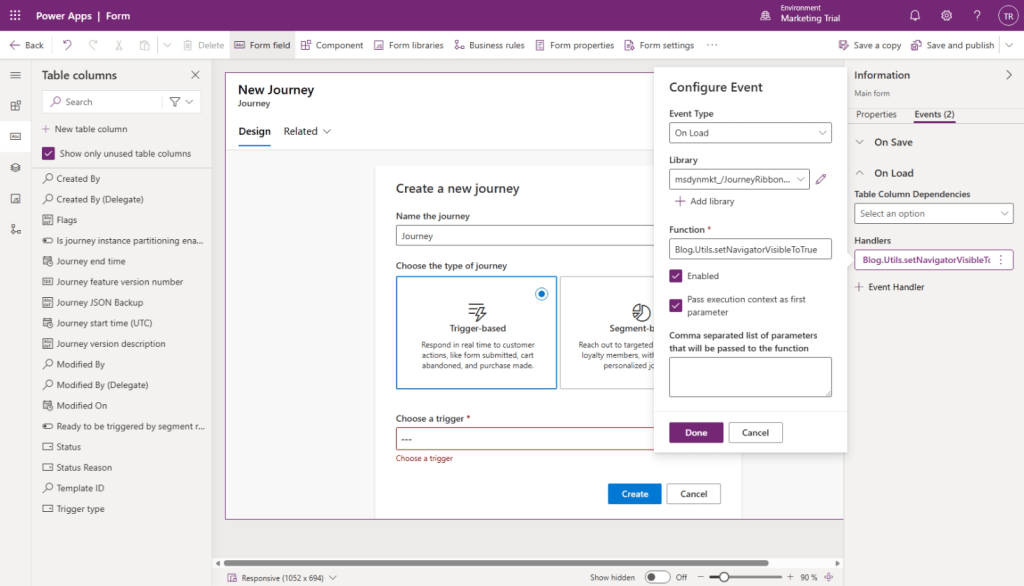
Load the WebRes and register the function in the formOnLoad
Once it is done, click the Save and Publish button, and you can retest the form.
** If you need to enable the Command Bar, then you can use this formContext.ui.headerSection.setCommandBarVisible(bool)!
Result
Now, you can see the Navigation bar, and you can go check the Audit History records normally:
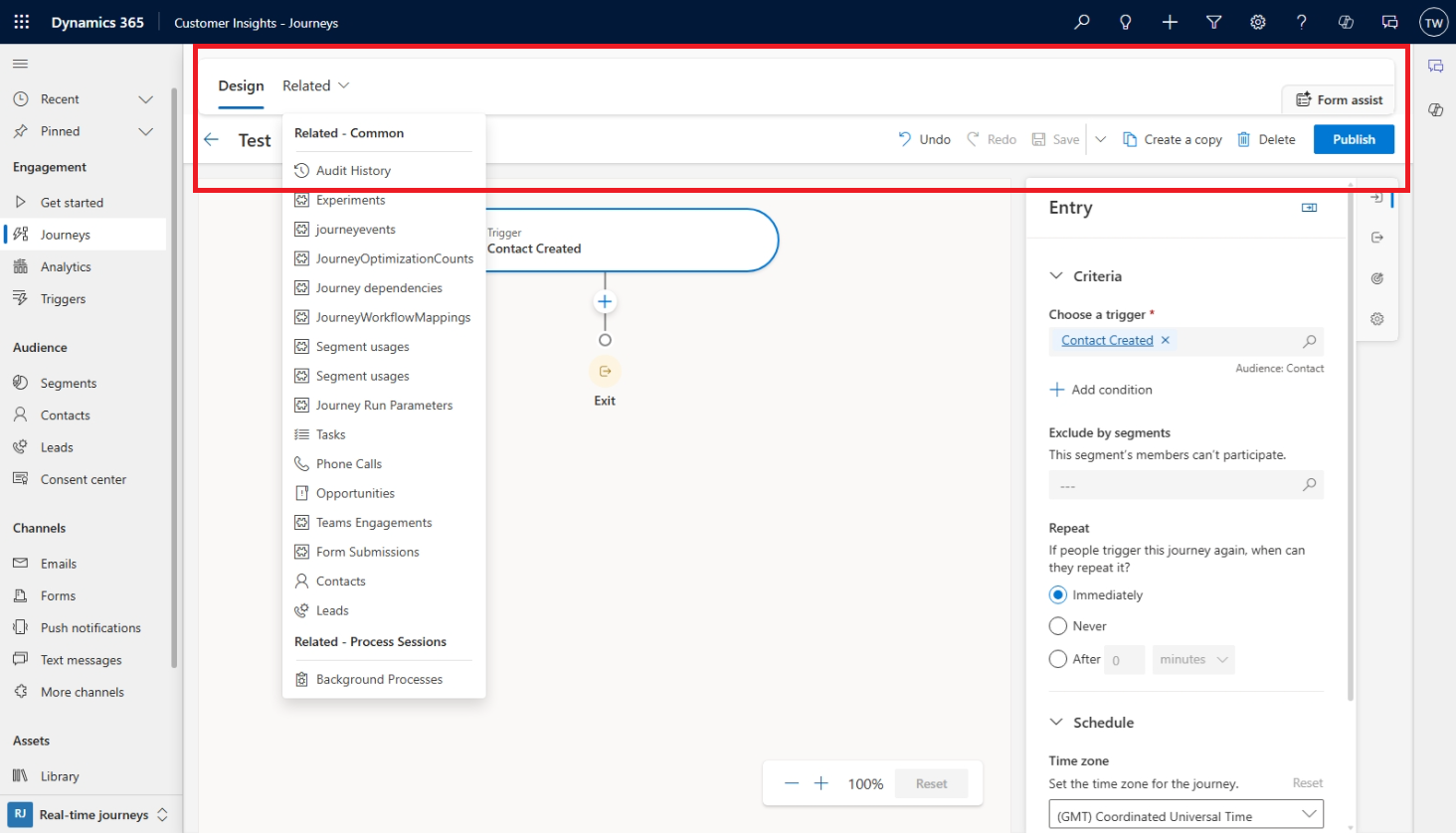
Result
Hope this helps! Happy CRM-ing 🚀!
Leave a comment
Your comment is sent privately to the author and isn't published on the site.