dynamics-crm , low-code , powerplatform
Dataverse: Create Custom API to retrieve data of requiredattendees/optionalattendees on Appointment table

If you use the Appointment table, some attributes like RequiredAttendees and OptionalAttendees are tricky to use in Power Automate. For instance, if the Appointment status is completed, you want to trigger an email that needs to be sent automatically to the RequiredAttendees/OptionalAttendees. Let's implement this feature!
Create Custom API
Here is the code that I prepared to create the Custom API:
using Microsoft.Xrm.Sdk;
using Microsoft.Xrm.Sdk.Extensions;
using Microsoft.Xrm.Sdk.Query;
using System;
using System.Collections.Generic;
using System.Linq;

namespace BlogPackage
{
    public class GetRelatedActivityEntitiesApi : PluginBase
    {
        public const string TargetParam = "Target";
        public const string AttributeParam = "Attribute";
        public const string ColumnSetsParam = "ColumnSets";

        public const string ResultParam = "Result";

        public GetRelatedActivityEntitiesApi() : base(typeof(GetRelatedActivityEntitiesApi))
        {
        }

        protected override void ExecuteDataversePlugin(ILocalPluginContext localPluginContext)
        {
            var target = localPluginContext.PluginExecutionContext.InputParameterOrDefault<EntityReference>(TargetParam);
            if (target == null) throw new ArgumentNullException(TargetParam);

            var attribute = localPluginContext.PluginExecutionContext.InputParameterOrDefault<string>(AttributeParam);
            if (attribute == null) throw new ArgumentNullException(attribute);

            var columnSets = localPluginContext.PluginExecutionContext.InputParameterOrDefault<string>(ColumnSetsParam);
            if (string.IsNullOrEmpty(columnSets)) throw new ArgumentNullException(ColumnSetsParam);

            var appointment = localPluginContext.AdminService.Retrieve(target.LogicalName, target.Id, new ColumnSet(attribute));
            var attributeValue = appointment.GetAttributeValue<EntityCollection>(attribute);
            if ((attributeValue?.Entities?.Count ?? 0) == 0) return;

            var entityModels = GetEntityModels(columnSets).ToArray();
            var entities = GetEntities(localPluginContext.AdminService, attributeValue, entityModels).ToArray();
            var result = new EntityCollection();
            result.Entities.AddRange(entities);

            localPluginContext.PluginExecutionContext.OutputParameters[ResultParam] = result;
        }

        public static IEnumerable<Entity> GetEntities(IOrganizationService service, EntityCollection collection, EntityModel[] entityModels)
        {
            foreach (var entity in collection.Entities)
            {
                var entityReference = entity.GetAttributeValue<EntityReference>("partyid");
                if(entityReference == null) continue;

                var currentEntityModel = entityModels.FirstOrDefault(e => e.Entity == entityReference.LogicalName);
                if (currentEntityModel == null) continue;

                var data = service.Retrieve(entityReference.LogicalName, entityReference.Id, new ColumnSet(currentEntityModel.ColumnSet));
                yield return data;
            }
        }

        public static IEnumerable<EntityModel> GetEntityModels(string input)
        {
            // Split the input string into individual entity parts
            var entities = input.Split(new[] { ")," }, StringSplitOptions.None);
            foreach (var entity in entities)
            {
                // Split each entity into entity name and columns
                var parts = entity.Replace(")", "").Split('(');
                var entityModel = new EntityModel
                {
                    Entity = parts[0].Trim(),
                    ColumnSet = parts[1].Split(',').Select(column => column.Trim()).ToArray()
                };
                yield return entityModel;
            }
        }

        public class EntityModel
        {
            public string Entity { get; set; }
            public string[] ColumnSet { get; set; }
        }
    }
}
As you can see, in the above code, the Custom API needs several parameters:
- Target: EntityReferenceof the Appointment record.
- Attribute: selected attribute (must be EntityCollection) that will be retrieved from the database.
- ColumnSets: Entity and the ColumnSet that we want to retrieve. FYI, there is a limitation from Power Automate to only retrieve an entity/table. The format of this will be TableName1(Column1,Column2),TablaeName2(Column1,Column2).
The flow of the code itself is pretty simple:
- Retrieve the Attribute of the Target entity/table. If the EntityCollectionis empty, stop the operation (lines 33 - 35).
- Get the Retrieval models (Entity + Attributes, lines 60 - 75).
- Retrieve the ActivityParty.PartyId from EntityCollection> retrieved the entity based on the retrieval model (lines 45 - 58).
- Set the Result parameter (lines 39 - 42).
Build the Plugin > deploy it and I created the below Custom API using XrmToolBox> Custom API Manager by David Rivard
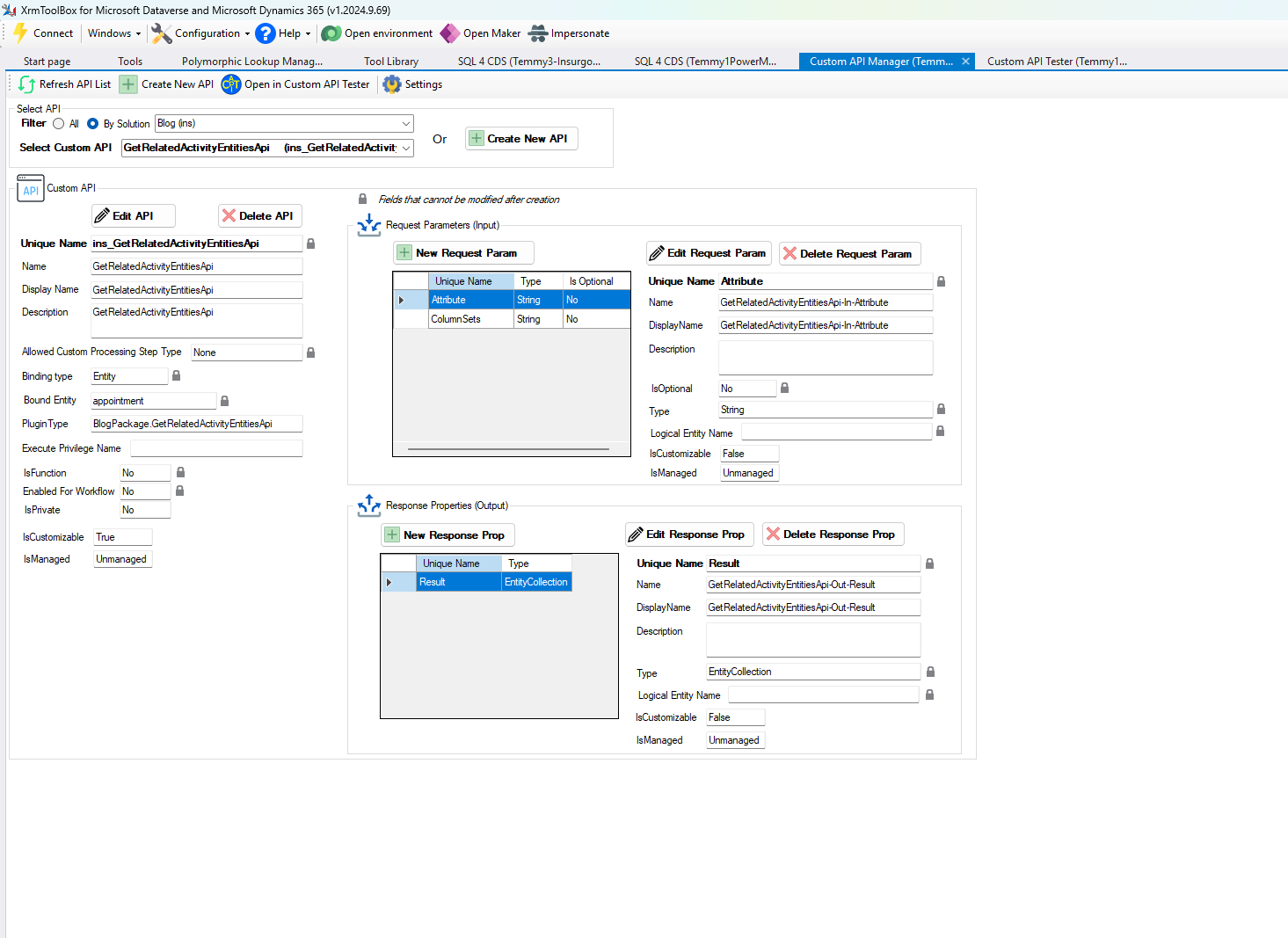
Custom API GetRelatedActivityEntitiesApi
Power Automate
Next, we can utilize the Custom API inside our Power Automate Flow. For example, I created the below Power Automate Flow:
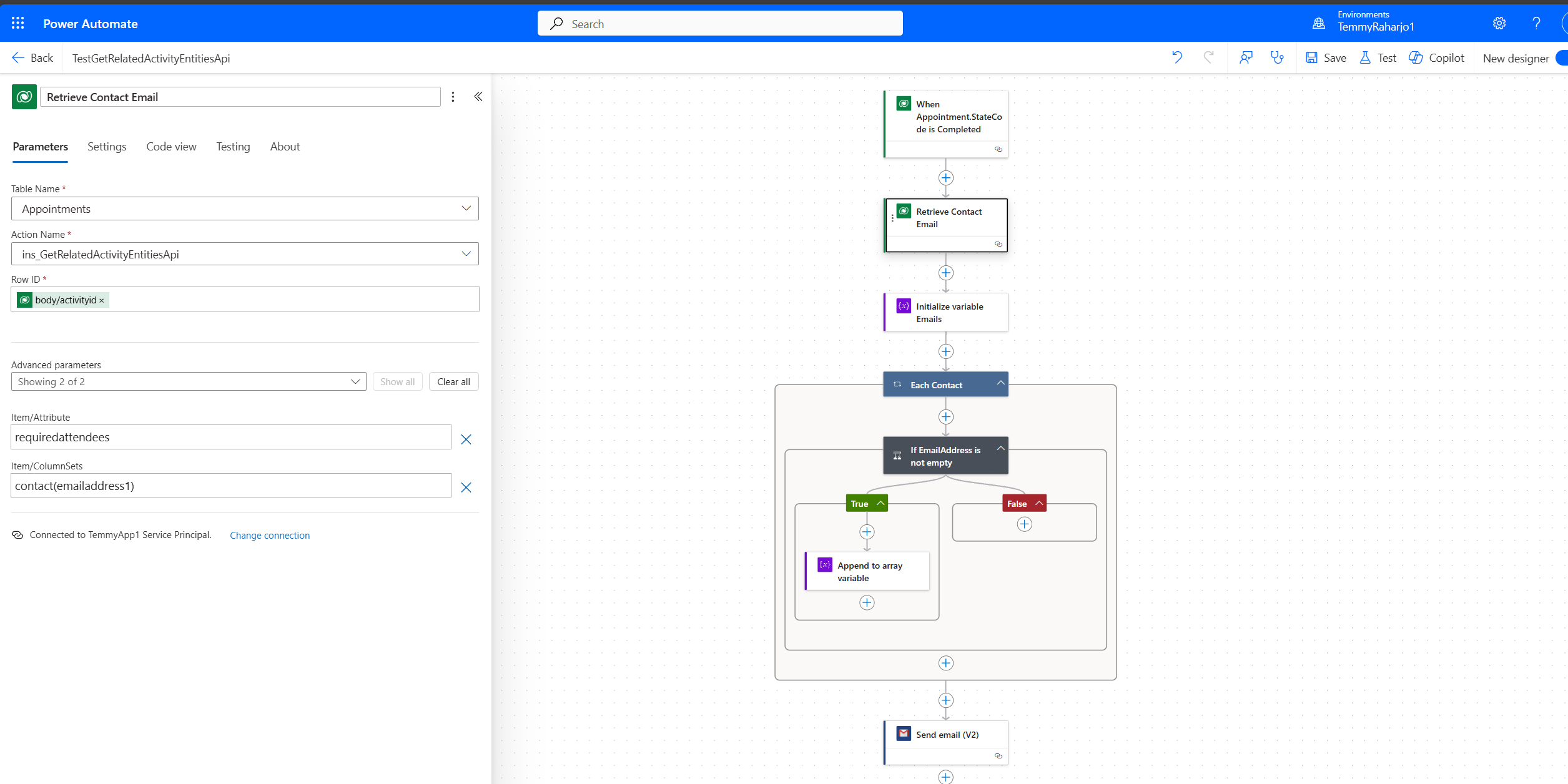
Utilize the GetRelatedActivityEntitiesApi Custom API
Basically, we only need to call the GetRelatedActivityEntitiesApi > loop the result collections > check if EmailAddress1 is not empty and add it to the array of Emails. Last, we can set the To attribute by joining the array with the ';' char and sending the content we want.
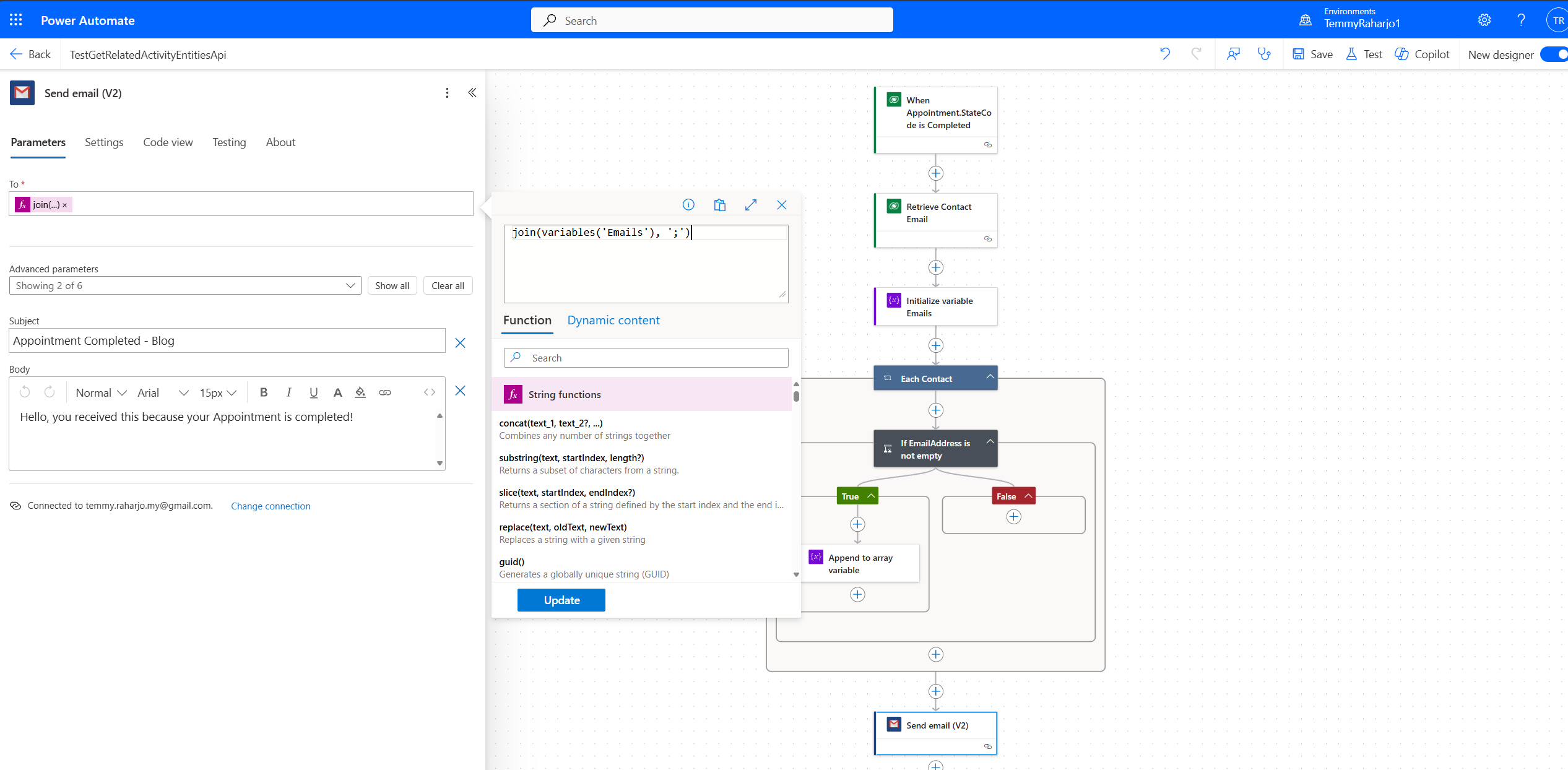
Join the Email array and set the Email Content
Demo
Once done, we only need to set the Appointment to Complete, and here is the result!
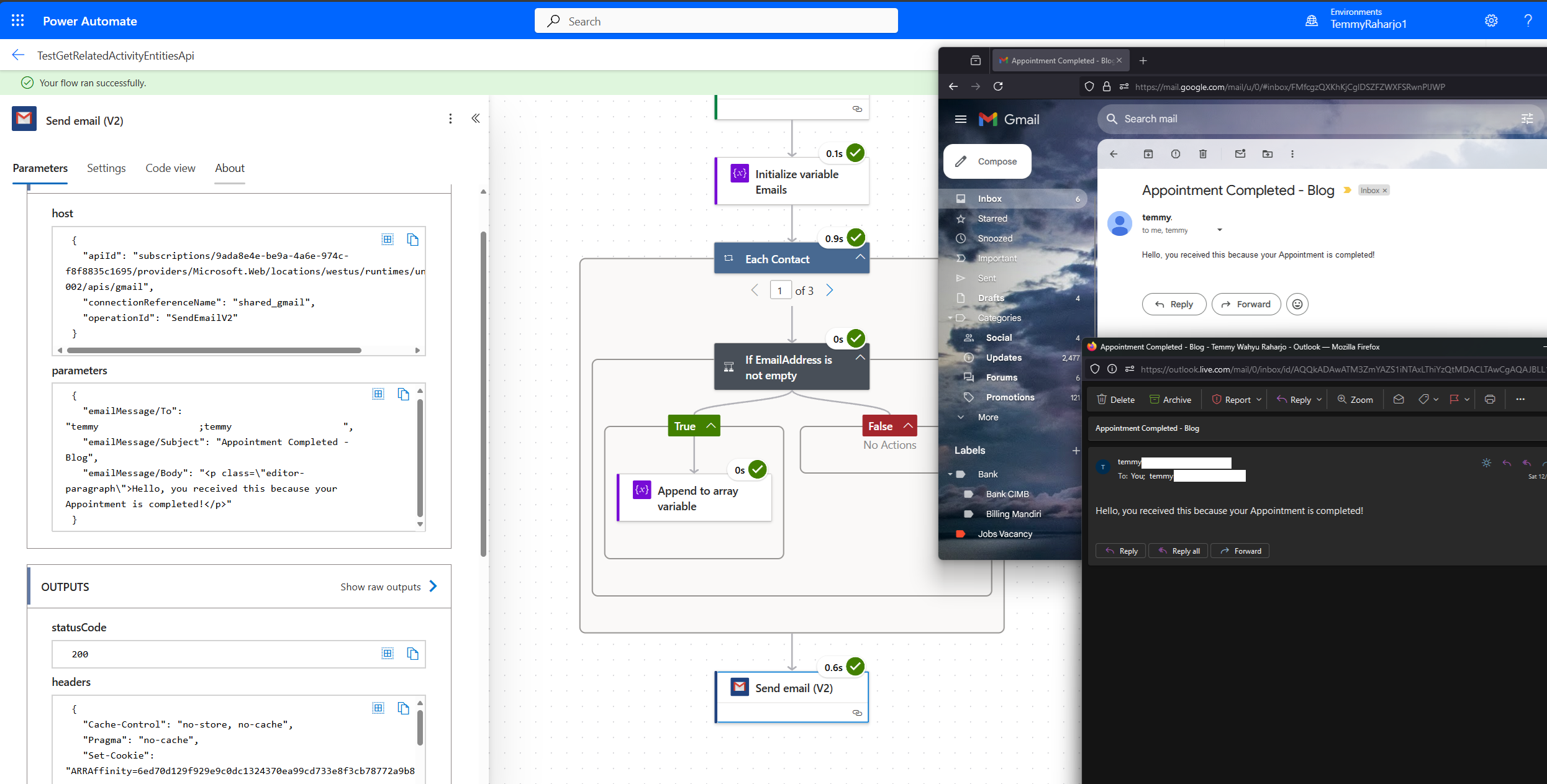
Demo
Happy CRM-ing! 🚀
Leave a comment
Your comment is sent privately to the author and isn't published on the site.