How to use Azure Service Bus Queue and Azure Storage Queue

Let's make a different type of blog post for this week. This week, we will learn how to consume Azure Service Bus Queueand Azure Storage Queue. Both are technology stacks that sit in Azure that enable us to make queueing system. The comparisons between Azure Bus Queue and Azure Storage Queue you can check here. But for me, the most important difference was:
- Azure Service Bus Queue will guarantee the message will be in order (First-In-First-Out), while Azure Storage Queue is not.
- Azure Service Bus Queue allows you to make more complex scenarios (Delivery guarantee with At-Least-Once/At-Most-Once, Receive behavior: Blocking with or without a timeout, Non-Blocking). Azure Storage Queue is not.
For today's demonstration, we will create an exe that will process the message (Azure Service Bus Queue/Azure Storage Queue).
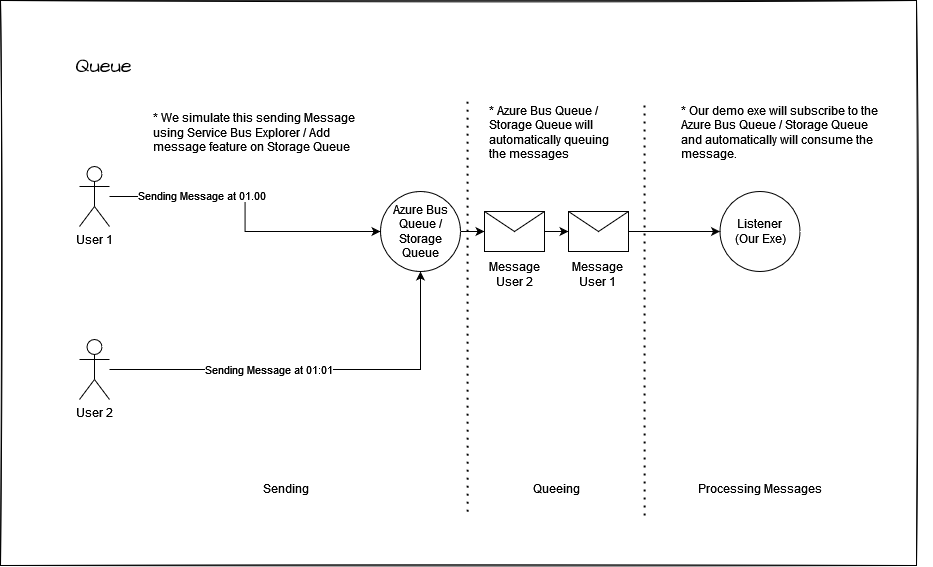 Our demo flow
Create Azure Service Bus Queue
Go to your portal.azure.com > Service Bus> hit Createbutton > select the correct Subscription, Resource Group, Namespace name, Location, and Pricing Tier. For the demonstration purpose, I choose the Basic plan (to reduce costs).
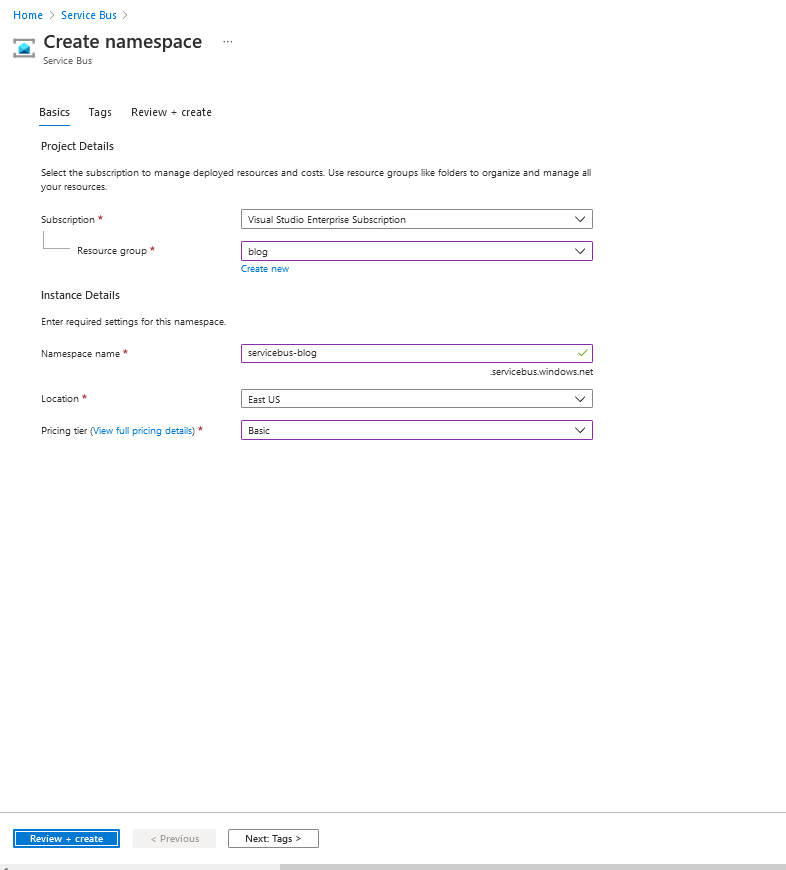 Create Service Bus
Next, you can go to Entities/Queues blade > click the + Queue button > give it the name "queue". Left the other setting as default, then you can click Create button.
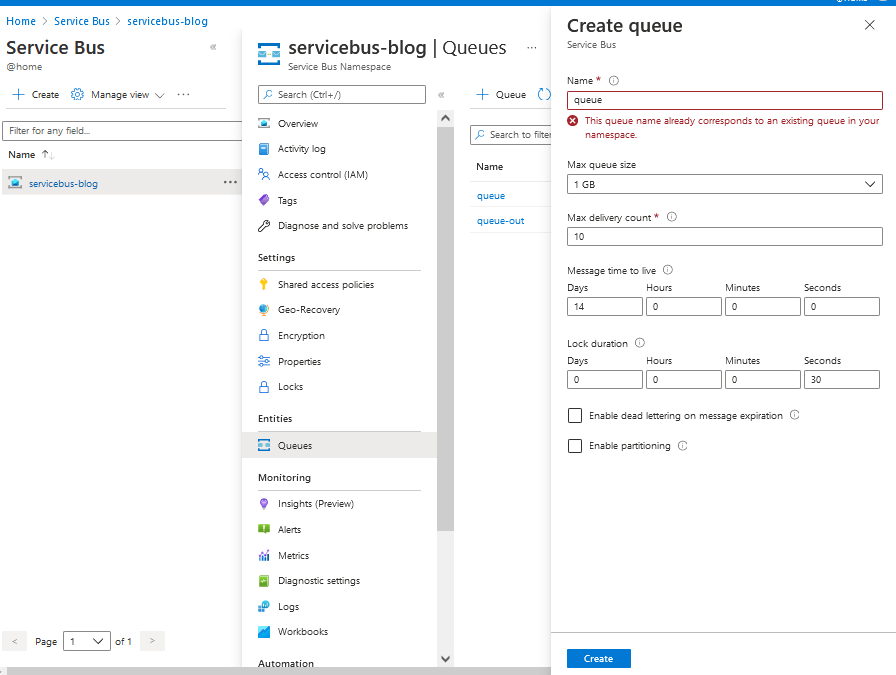 Create a Service Bus Queue
To get the connection string (to be used in the next step, you can go to Shared access policies blade > select the RootManageSharedAccessKey (or create another SAS with the least privilege) > Copy and save the Primary Connection String / Secondary Connection String.
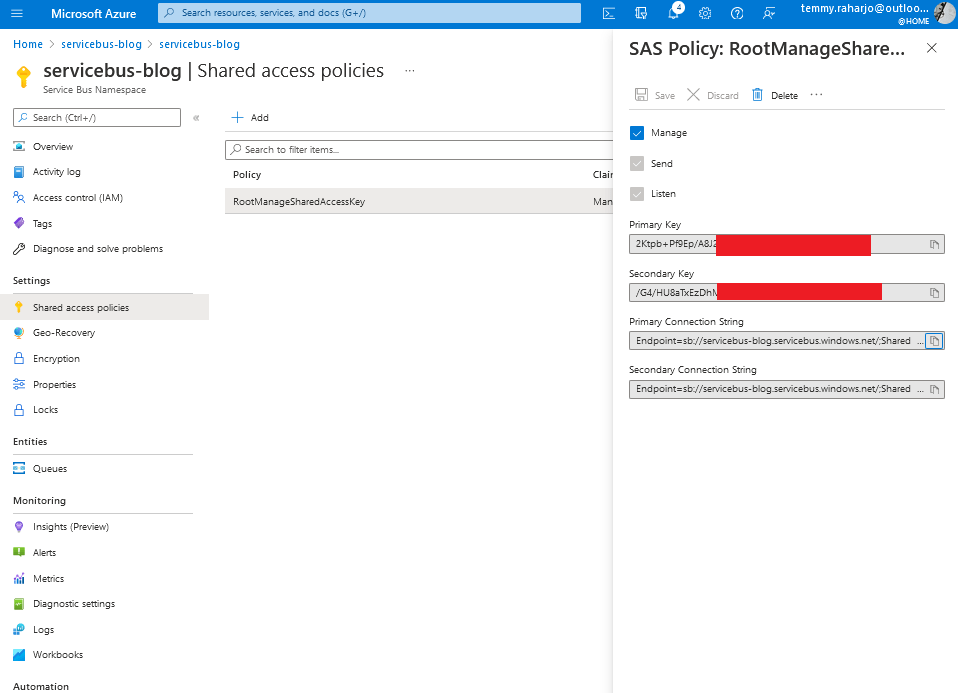 Get Service Bus Connection string
Create Azure Storage Queue
Go to your portal.azure.com > Storage account > hit Create button > Fill in the Subscription, Resource group, Storage account name, Region, Performance, and Redundancy setting. You can click Review + Create and click Next until you can create the resource.
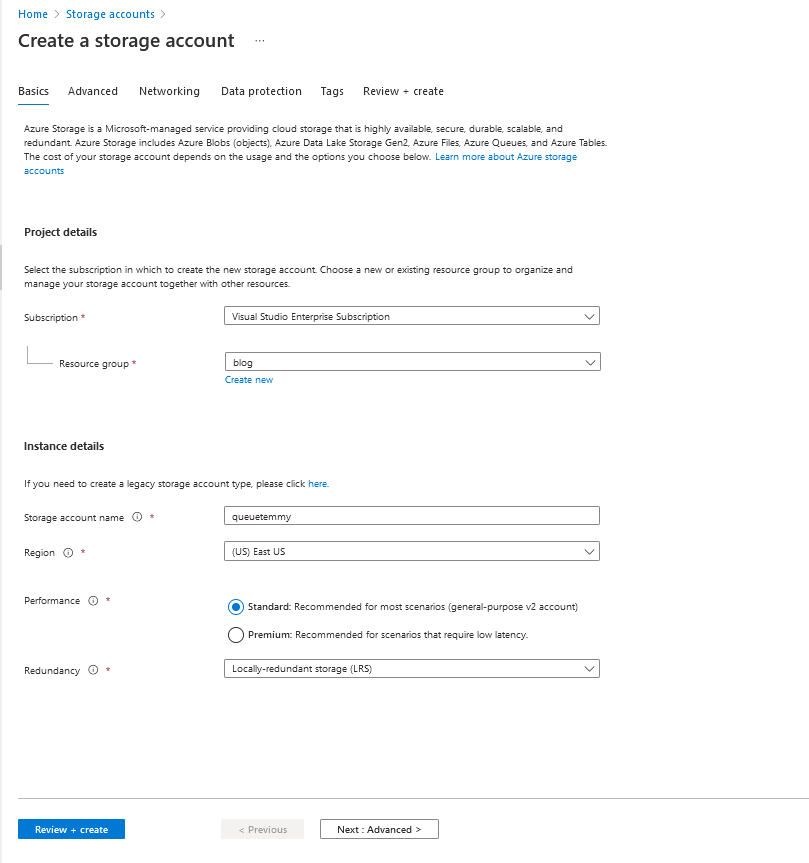 Create Storage Account
Once the Storage account is created, you can go Data storage > Queuesblade > + Queue button > fill the Queue name as "queue" > click OK button.
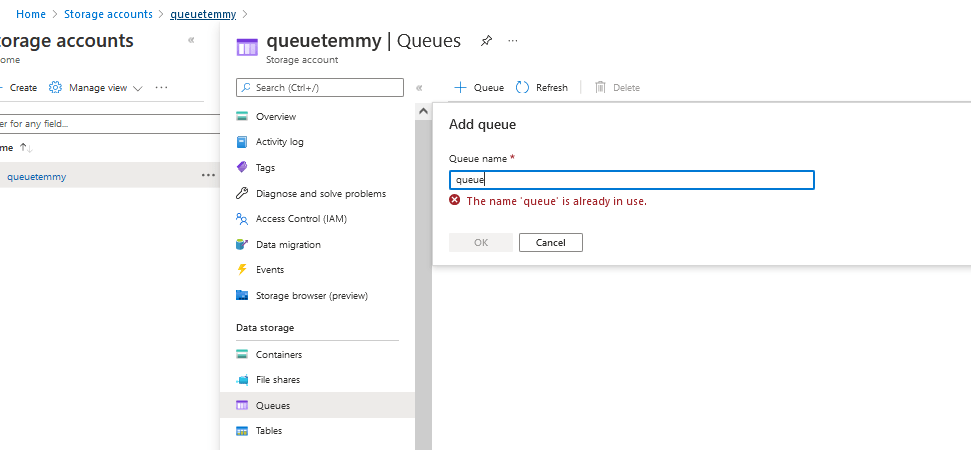 Create Storage Queue
To get the connection string (to be used in the next step, you can go to Access keys blade > click Show keys button > you can copy key1 Connection String or key2 Connection String to be used in the next step.
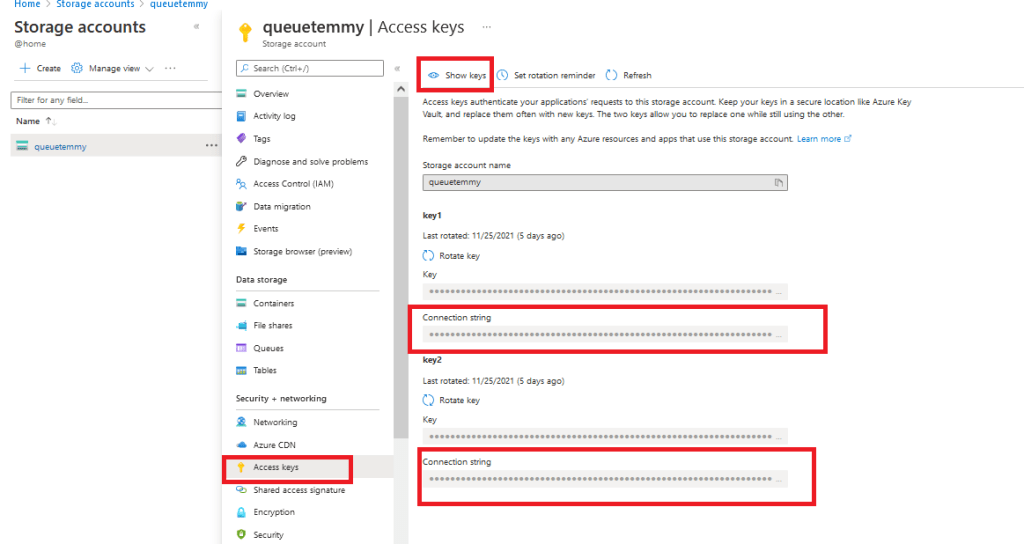 Get connection string for Azure Storage Queue
The Code
You can create a Console Application with***.NET Core 3.1***as the targeted framework. Once you create the project, you need to install below NuGet packages (from .csproj):
<Project Sdk="Microsoft.NET.Sdk;Microsoft.NET.Sdk.Publish">
  <PropertyGroup>
    <OutputType>Exe</OutputType>
    <TargetFramework>netcoreapp3.1</TargetFramework>
  </PropertyGroup>
  <ItemGroup>
    <PackageReference Include="Microsoft.Azure.WebJobs.Extensions" Version="4.0.1" />
    <PackageReference Include="Microsoft.Azure.WebJobs.Extensions.ServiceBus" Version="5.1.0" />
    <PackageReference Include="Microsoft.Azure.WebJobs.Extensions.Storage" Version="5.0.0" />
    <PackageReference Include="Microsoft.Azure.WebJobs.Logging.ApplicationInsights" Version="3.0.30" />
    <PackageReference Include="Microsoft.Extensions.Logging.Console" Version="6.0.0" />
  </ItemGroup>
  <ItemGroup>
    <None Update="appsettings.json">
      <CopyToOutputDirectory>PreserveNewest</CopyToOutputDirectory>
    </None>
    <None Update="Settings.job">
      <CopyToOutputDirectory>Always</CopyToOutputDirectory>
    </None>
  </ItemGroup>
</Project>
For the demonstration purpose, I keep the connection string in appsettings.json(you can move this setting to Azure KeyVault):
{
  "AzureQueueConnectionString": "DefaultEndpointsProtocol=https;AccountName=queuetemmy;AccountKey=1z1e6MB/...;EndpointSuffix=core.windows.net",
  "AzureServiceBusConnectionString": "Endpoint=sb://servicebus-blog.servicebus.windows.net/;SharedAccessKeyName=RootManageSharedAccessKey;SharedAccessKey=2Ktpb+Pf9Ep..."
}
And here is the c# code:
using Microsoft.Azure.WebJobs;
using Microsoft.Extensions.Configuration;
using Microsoft.Extensions.Hosting;
using Microsoft.Extensions.Logging;
using System;
using System.Threading.Tasks;

namespace WebJobsHost
{
    internal class Program
    {
        static async Task Main()
        {
            var builder = new HostBuilder();
            builder
                .ConfigureAppConfiguration((builderContext, cb) =>
                {
                    var env = builderContext.HostingEnvironment;
                    cb.AddJsonFile($"appsettings.{env.EnvironmentName}.json", optional: true, reloadOnChange: true);
                })
                .ConfigureWebJobs(b =>
                {
                    b.AddAzureStorageCoreServices();
                    b.AddAzureStorageQueues();
                    b.AddServiceBus();
                })
                .ConfigureLogging((context, b) =>
                {
                    b.AddConsole();
                    b.AddApplicationInsightsWebJobs();
                });

            var host = builder.Build();
            using (host)
            {
                await host.RunAsync();
            }
        }
    }

    public class FunctionAzureWebJobsStorageConnection
    {
        public static readonly EventId APPEVENTID = new EventId(100, "APPLICATION");
        public async static void ProcessQueueMessage([QueueTrigger("queue",
            Connection = "AzureQueueConnectionString")] string message,
            [Queue("queue-out", Connection = "AzureQueueConnectionString")] IAsyncCollector<string> collector, ILogger logger)
        {
            logger.LogInformation(APPEVENTID, $"Running Queue {message}..");
            await collector.AddAsync(Guid.NewGuid().ToString());
        }

        public async static void ProcessBusQueueMessage([ServiceBusTrigger("queue", AutoCompleteMessages = true,
            Connection = "AzureServiceBusConnectionString", IsSessionsEnabled = false)] string message,
            [ServiceBus("queue-out", Connection = "AzureServiceBusConnectionString")] IAsyncCollector<Guid> collector, ILogger logger)
        {
            logger.LogInformation(APPEVENTID, $"Running Bus Queue {message}..");
            await collector.AddAsync(Guid.NewGuid());
        }
    }
}
Note: For the IAsyncCollector<T> collector, you need to create another queue (either Azure Service Bus QueueorAzure Storage Queue). This mechanism allowed you to push another message after receiving the message from the main queue (you can remove the collector parameter if you just want to process the messages from the main queue).
Below is the demonstration for the Azure Service Bus Queue:
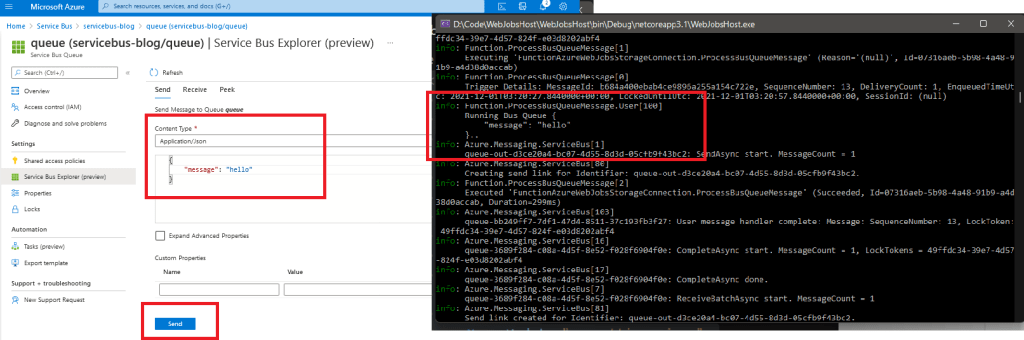 Demo for Azure Service Bus Queue
Last is the demonstration for Azure Storage Queue:
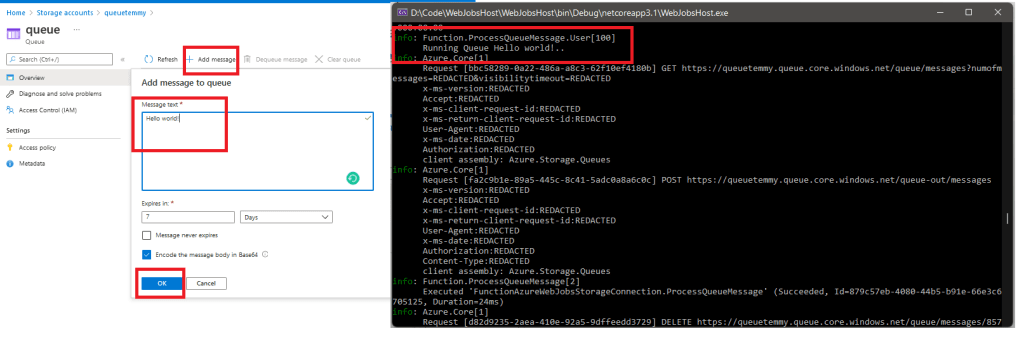 Demo for Azure Storage Queue
Happy coding!
Leave a comment
Your comment is sent privately to the author and isn't published on the site.